
Category: Email Hosting Published on: 25 June, 2026
Best Email Configuration Settings for Business Hosting (2026 Guide)
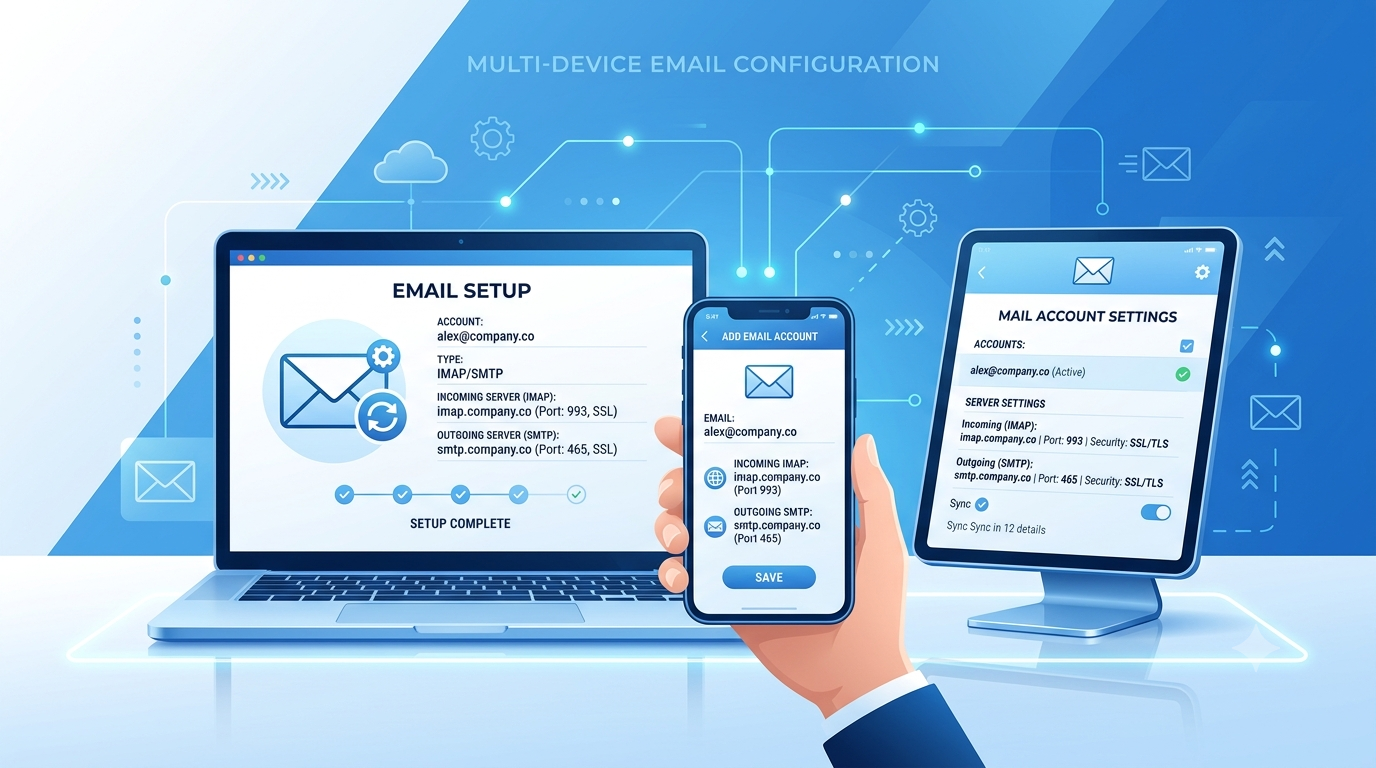
Proper email configuration is essential for smooth business communication. Whether you're setting up your email on mobile, desktop, or multiple devices, using the correct IMAP and SMTP settings ensures reliable sending and receiving of emails.
Why Use IMAP Instead of POP?
- Emails stay on the server and sync across all your devices
- You can read/reply from phone, laptop, or tablet seamlessly
- Changes (folders, read status) are synchronized
Recommended: Always use IMAP unless you have a specific reason to use POP.
Your Email Server Settings
Email Address: yourname@tex-tidefashion.com
Username: Your full email address
Password: Same as your webmail password
Incoming Mail Server (IMAP)
- Server: imap.tex-tidefashion.com
- Port: 143
- Encryption: STARTTLS (Recommended)
- Alternative: Port 993 with SSL/TLS
Outgoing Mail Server (SMTP)
- Server: smtp.tex-tidefashion.com
- Port: 587
- Encryption: STARTTLS
- Authentication: Enabled (use same username and password)
Step-by-Step Setup Guides
1. Microsoft Outlook (Desktop)
- Open Outlook → File → Add Account
- Select Manual setup or additional server types
- Choose IMAP
- Enter the following:
- Incoming server: imap.tex-tidefashion.com, Port 143, STARTTLS
- Outgoing server: smtp.tex-tidefashion.com, Port 587, STARTTLS
- Check “My outgoing server requires authentication”
- Click Next to test and complete setup
2. Outlook Mobile App (Android & iOS)
- Open the Outlook app → Tap Add Account
- Enter your email address
- Choose IMAP or Advanced setup
- Use the IMAP and SMTP settings above
- Save and test connection
3. Apple Mail (iPhone, iPad, Mac)
- Go to Settings → Mail → Accounts → Add Account
- Select Other → Add Mail Account
- Choose IMAP
- Enter:
- Incoming Server: imap.tex-tidefashion.com (Port 143, STARTTLS)
- Outgoing Server: smtp.tex-tidefashion.com (Port 587, STARTTLS)
- Complete the setup
4. Gmail App (Android / iOS)
- Open Gmail app → Tap profile → Add another account
- Select Other
- Enter your email and choose IMAP
- Input the server settings shown above
5. Mozilla Thunderbird
- Open Thunderbird → Add new Mail Account
- Click Configure manually
- Set IMAP and SMTP details exactly as provided
- Test the connection
Troubleshooting Common Issues
- Connection failed on Port 143 → Try Port 993 with SSL/TLS
- Cannot send emails → Try SMTP Port 465 with SSL/TLS
- Authentication error → Use your full email address as username
- Security certificate warning → Accept/Trust the certificate
- Still having issues? First verify your credentials work in Webmail
Best Practices
- Always use IMAP for multi-device access
- Enable two-factor authentication on your email account if available
- Regularly update your email client apps
- Keep a backup of important emails
By following this guide, your business email yourname@tex-tidefashion.com should work perfectly across all devices.